
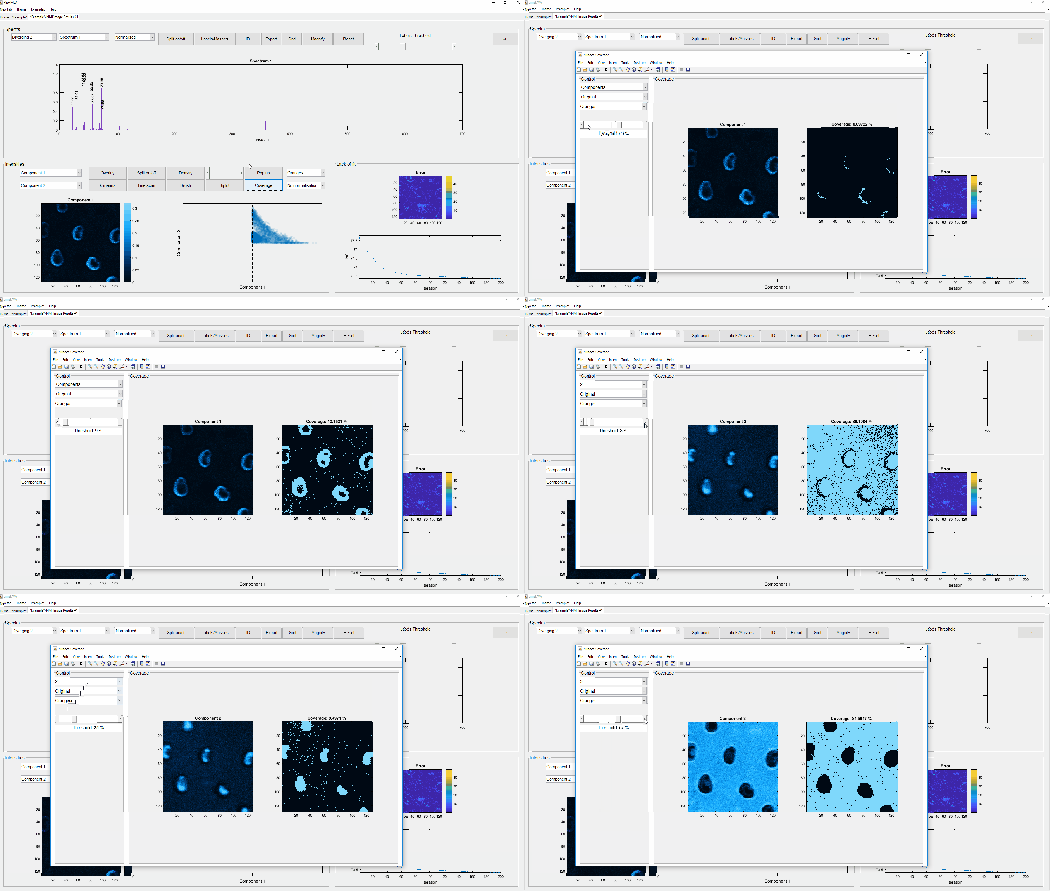

Surface coverage calculator in imaging mode
Multivariate analysis of mass spectrometry imaging data | contact@mvatools.com

It is now possible to convert a 3D dataset into 2D (imaging) or 1D (depth profiling) data. The converted dataset will be loaded on a new tab, maintaining its “hyperspectral” aspect. This is an extremely useful tool that was developed out of need (no other software can do that).


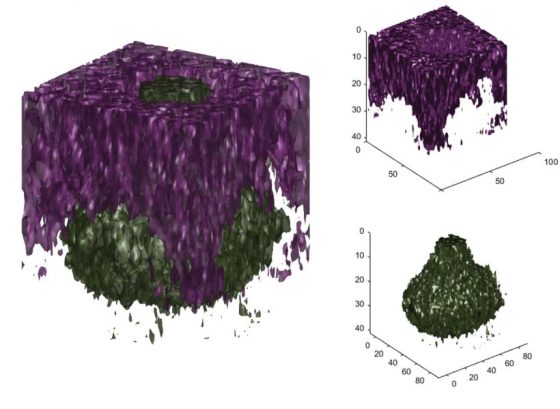
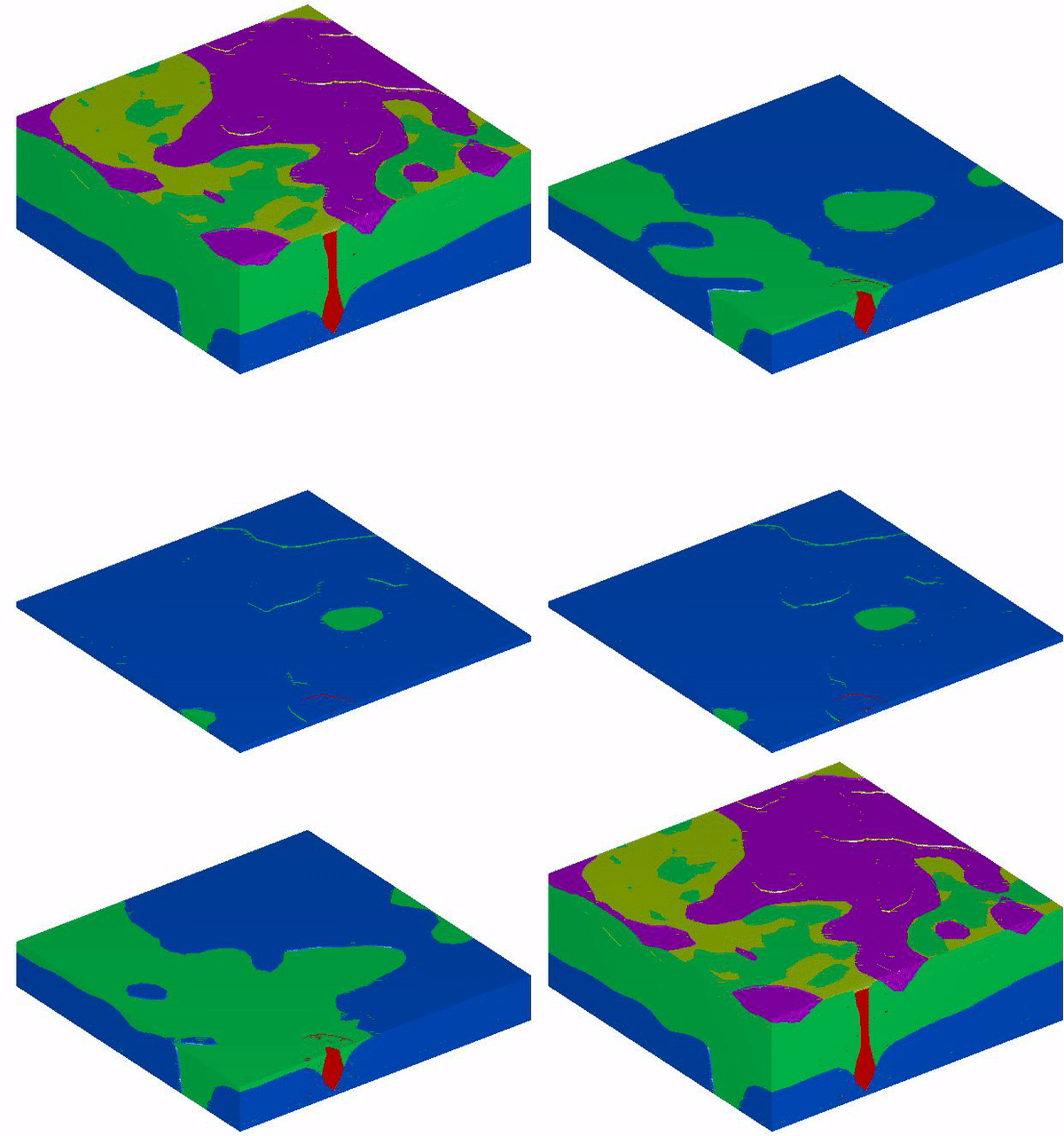
Additionally to a series of bug fixes in the 3D data loader, the 3D visualiser and the 3D overlay tools were redesigned to allow more customisation (they are also now applicable to both the original data AND MVA results!).
The Z-correction tool has also been improved. The user can now pre-process the data and select whether to base the correction on a substrate or topographical feature


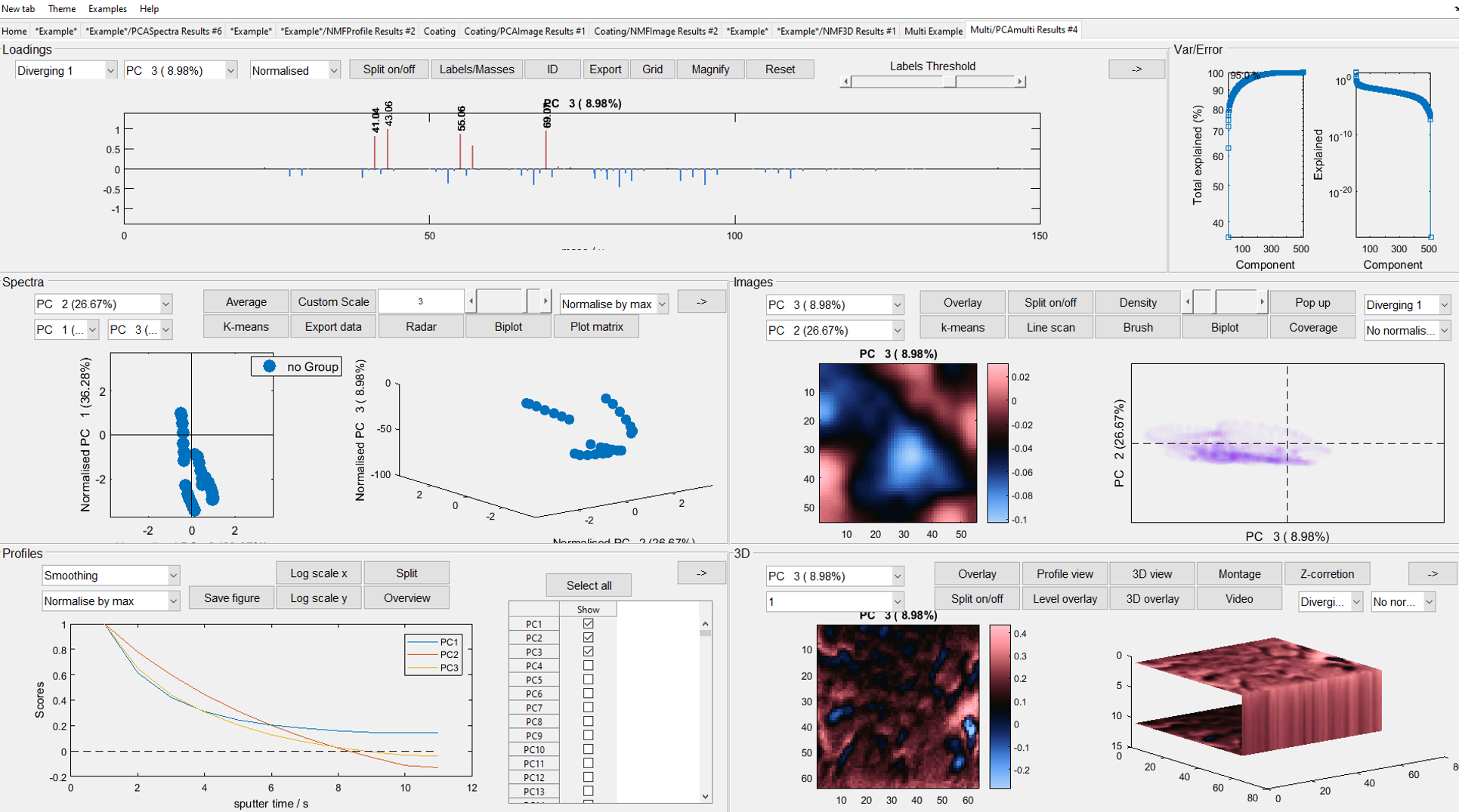
You can now find on the top menu 18 different example datasets of various different structures. This includes 4 examples of analytical techniques other than SIMS. This list of examples is as follows:

The research paper “The chemical throwing power of lithium-based inhibitors from organic coatings on AA2024-T3” pubished by P. Visser et al in the Corrosion Science journal presents a very interesting application of the “image stitching” functionalities of simsMVA.
link: https://www.sciencedirect.com/science/article/pii/S0010938X18320729

Dear user
A new version of simsMVA is out and it includes a number of new features. This will be a rather long list but we would like to highlight all major updates:
You can now find on the top menu 18 different example datasets of various different structures. This includes 4 examples of analytical techniques other than SIMS. This list of examples is as follows:
Datasets can now be saved into .mat files and subsequently loaded in any other new tab of the same kind (Spectra, Profiles, Images or 3D). No more stitching the same set of patches every time or waiting to load a long 3D dataset!

Additionally to a series of bug fixes in the 3D data loader, the 3D visualiser and the 3D overlay tools were redesigned to allow more customisation (they are also now applicable to both the original data AND MVA results!).
The Z-correction tool has also been improved. The user can now pre-process the data and select whether to base the correction on a substrate or topographical feature
It is now possible to convert a 3D dataset into 2D (imaging) or 1D (depth profiling) data. The converted dataset will be loaded on a new tab, maintaining its “hyperspectral” aspect. This is an extremely useful tool that was developed out of need (no other software can do that).
It had been long overdue, but it is finally possible to add peak labels in modes of analysis other than “Spectra”. A button has been added next to the variable selector in each mode.

And it is possible to change markers’ size!

Thank you very much for your support and feedback.


The newest version of simsMVA has got several bug fixes plus some new features, including:



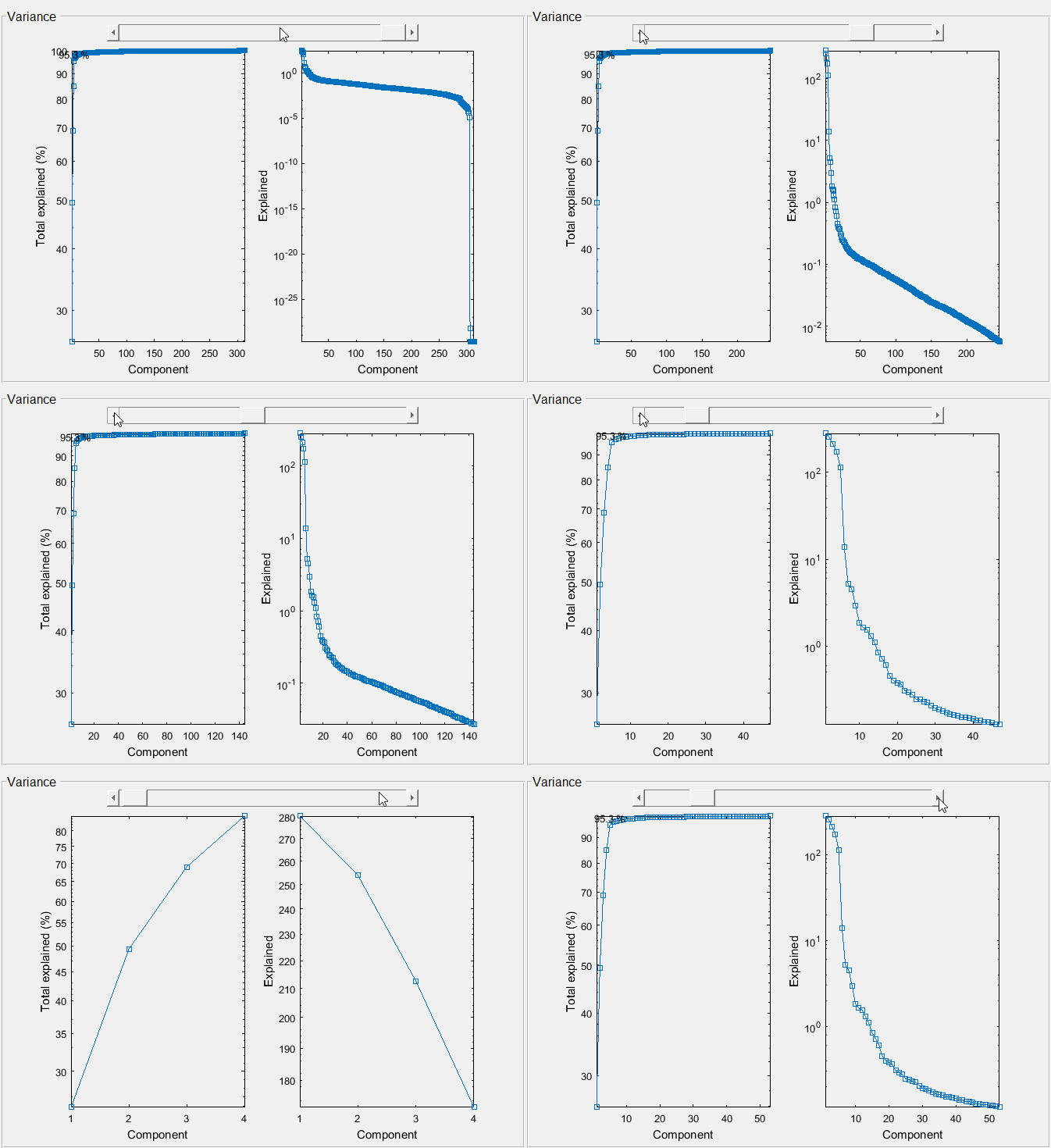

Dear simsMVA user
This is just a quick guide on how to set up and run the MATLAB version of simsMVA.
1 – unzip the files
2- inside MATLAB, find the folder, right-click on it and select “add to path -> selected folder”

3 – go to the command window and type in “simsMVA”
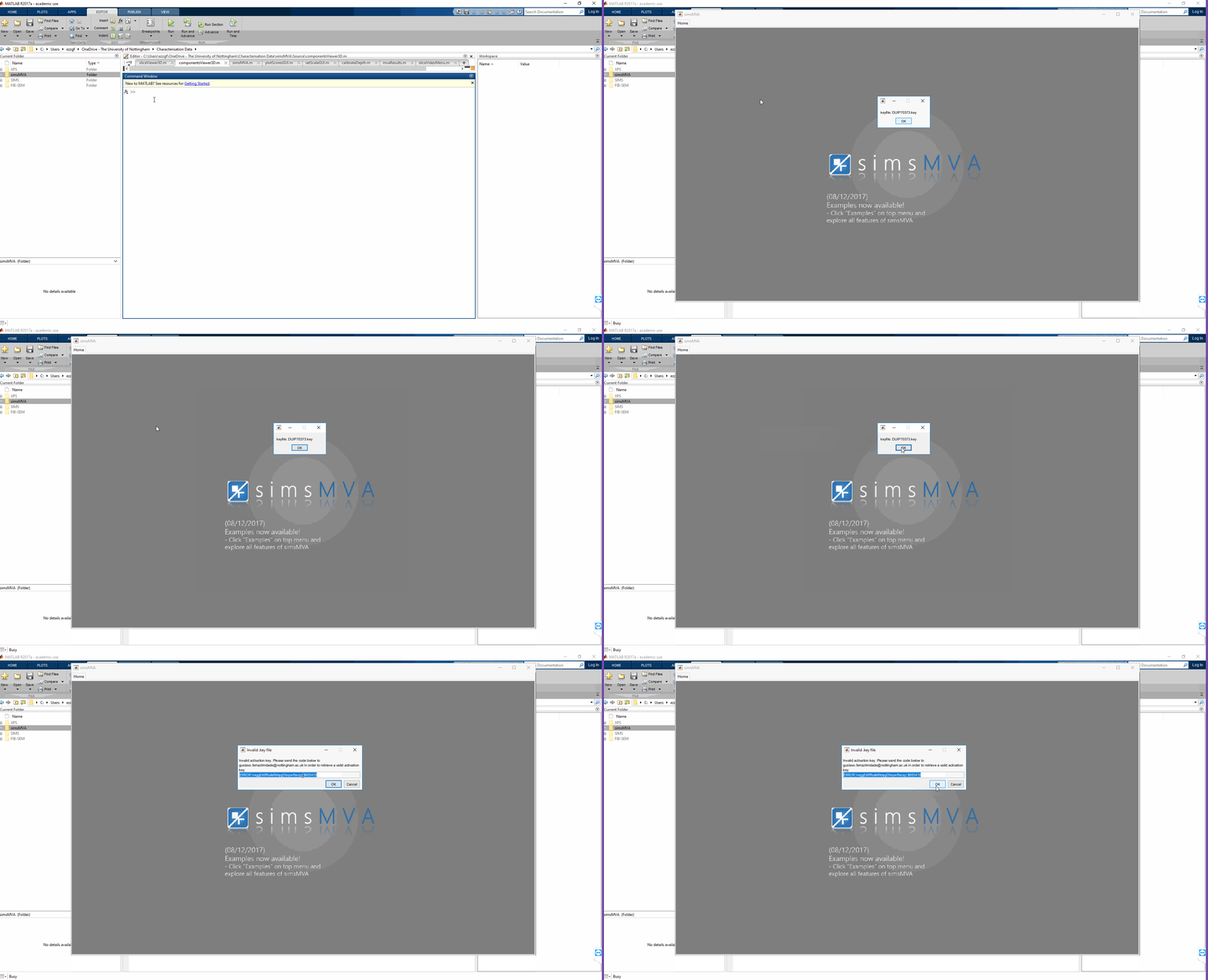
You will need to do step 2 every time you restart MATLAB, but once the folder is in the search path, you can run multiple instances of simsMVA
If you want to permanently add the folder to your search path, you can go to MATLAB’s “Home” tab and click on “Set path” (This will require admin rights)


Thanks to your valuable feedback, the newest version of simsMVA contains several bug fixes and additional features, with main highlights:
i) Improved 3D viewer and 3D overlay modes (Both now also work for the original variables and not only PCA/NMF components)
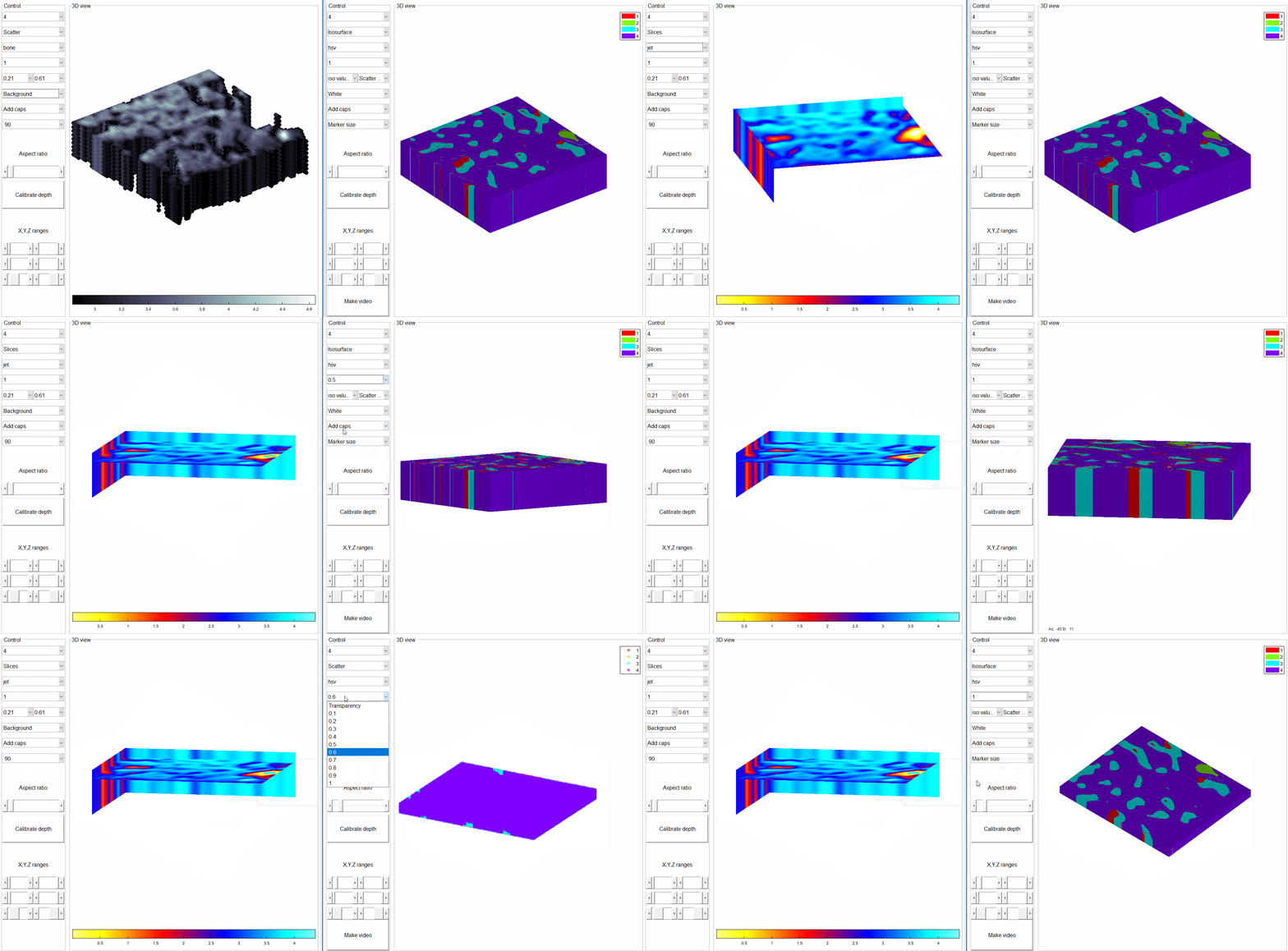
ii) Automated video maker for slices

iii) Loadings/Spectra grid option

Download simsMVA at https://mvatools.com/try-simsmva/
 MVA Tools | simsMVA